Quickstart
This page starts a local server, opens the demonstration store and draws a first plot. It
takes about two minutes once AnnZarro is installed (Installation) and you have a store.
The demonstration store bm_aging.zarr (murine bone marrow, Young vs Old, 8,090 cells x
16,285 genes, 4.8 GB) and how to get it are described in Demo data. Any AnnData
written with adata.write_zarr(...) works the same way.
1. Put the store in a data directory
AnnZarro lists the datasets found in one directory, its data directory. Copy or link the store there:
mkdir -p ~/annzarro-data
ln -s /path/to/bm_aging.zarr ~/annzarro-data/      # or cp -r
The picker lists .zarr directories and .h5ad files at the top level of the data directory
and in its datasets subdirectory, if there is one. Panel sets you save are written to
~/annzarro-data/sessions/.
2. Start the server
annzarro start --data-dir ~/annzarro-data
The server listens on 127.0.0.1:8000 and opens http://127.0.0.1:8000 in your browser. On
a machine without a display, add --no-browser and open the address yourself. Without
--data-dir, the data directory is ~/annzarro-data, created if it does not exist, so
annzarro start alone works for the layout above. Stop the server with Ctrl+C.
Bound to 127.0.0.1, the server is reachable only from this machine and needs no login. To
use a server on another machine, see Personal server over SSH.
3. Open the dataset
The first dataset in the data directory opens automatically. The bar under the header shows its size (for the demonstration store, “Cells: 8090” and “Genes: 16285”) and the main area shows the Welcome tile.
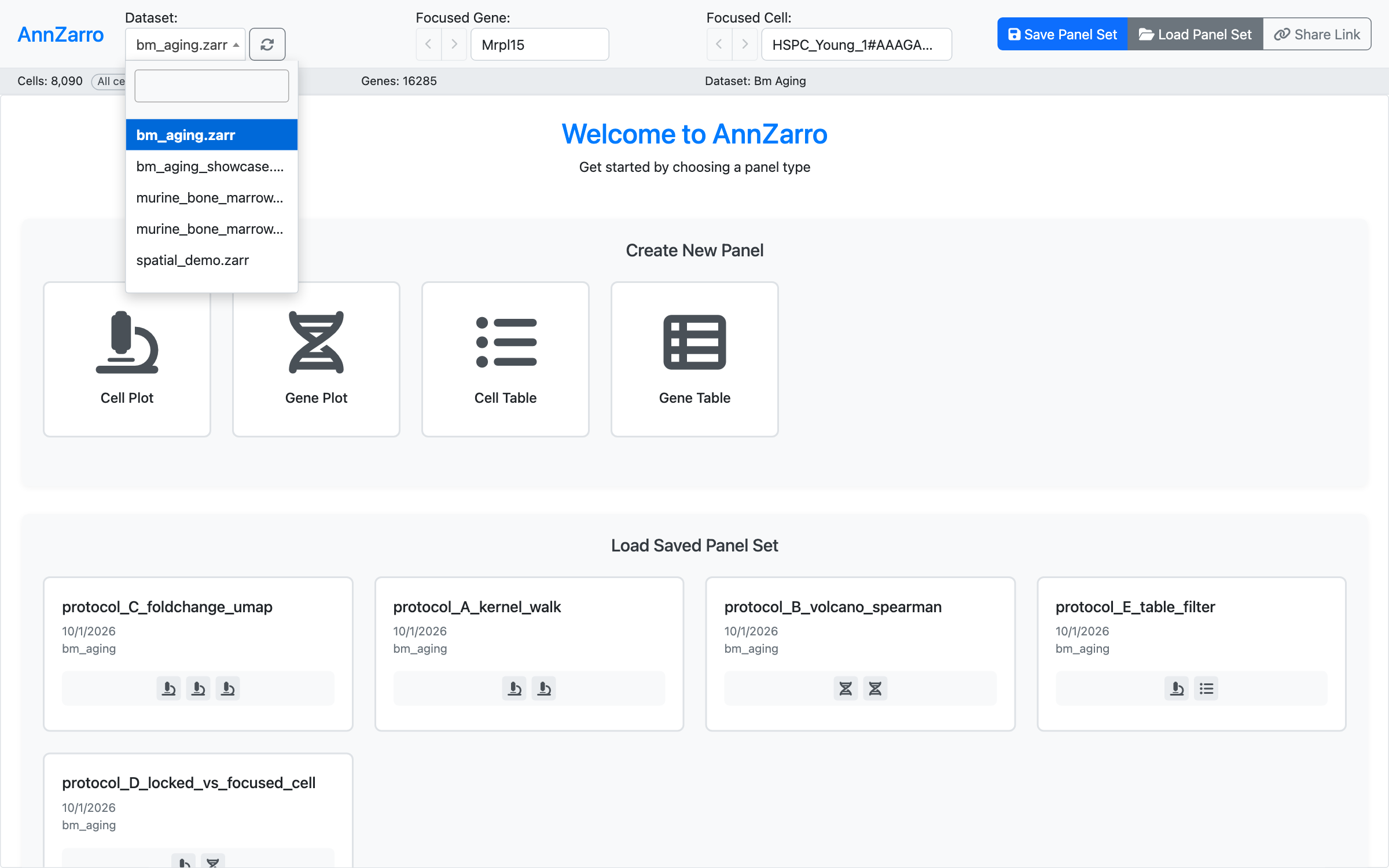
The Welcome tile after the server has opened bm_aging.zarr. The Dataset picker (open
here) lists every store in the data directory. “Create New Panel” starts an empty panel;
“Load Saved Panel Set” lists the panel sets saved on this server (here the five protocol views
of the demonstration data).
Click the Dataset picker at the top left and choose
bm_aging.zarr. To open a store outside the data directory on your own machine, type its full path into the picker’s search field and press Enter; it appears as “(Custom)”. A remote URL such ass3://bucket/atlas.zarris entered the same way (Remote datasets).Check the Focused Gene and Focused Cell boxes in the header. They start at the first gene and a cell of the dataset; every panel follows them (Focus and lock).
4. Draw a first plot
In the Welcome tile, under “Create New Panel”, click Cell Plot.
The tile becomes “Cell Plot 1”: a scatter plot of all cells on the first two UMAP coordinates (X-Axis
obsm/X_umap/0, Y-Axisobsm/X_umap/1), coloured by theobscolumnleiden. The focused cell is drawn as a larger point with a dark outline (“Highlight Focused Cell” is on).
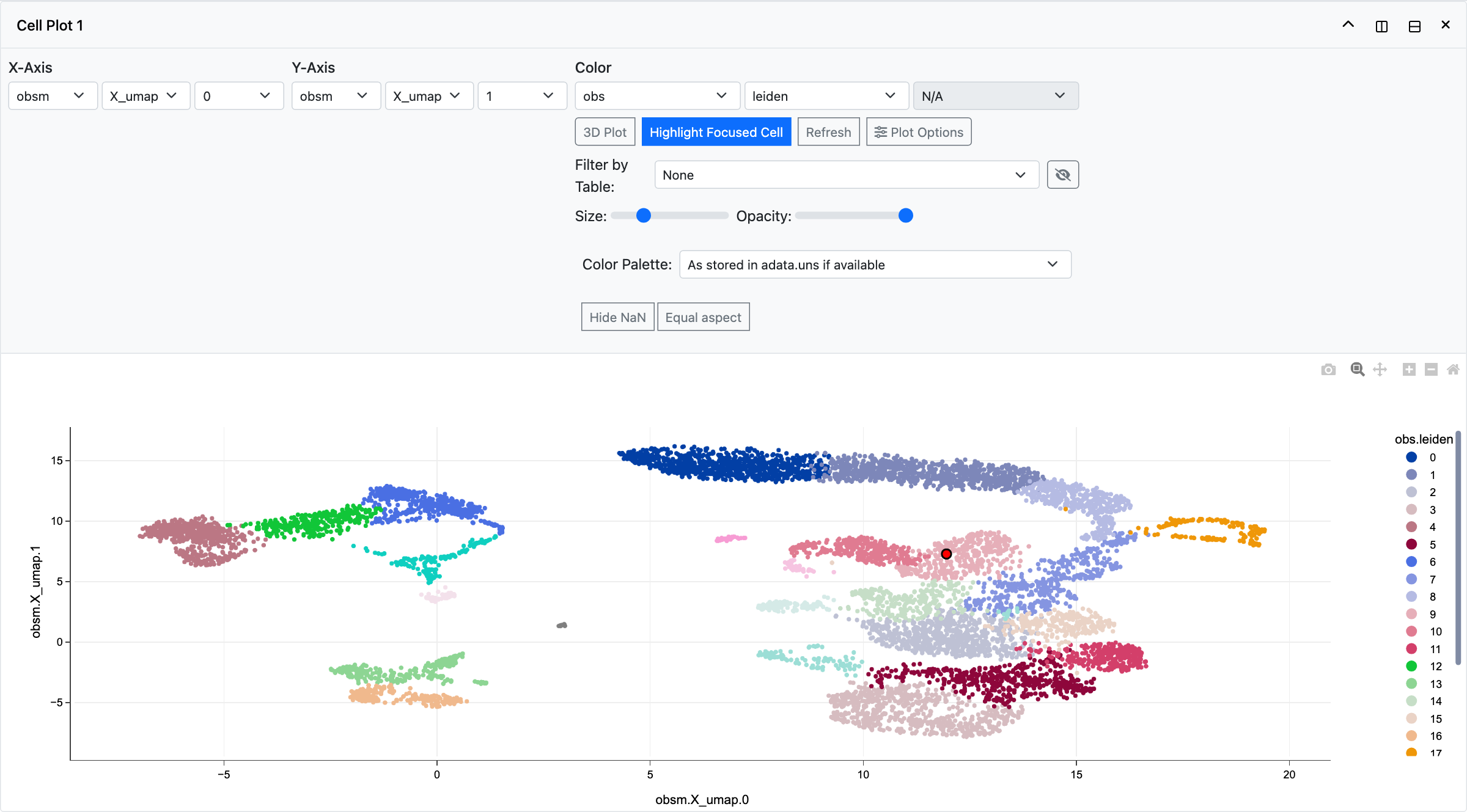
The first Cell Plot on bm_aging.zarr, with its controls open.
Change the colour: in the Color row, set the first box to
layerand the second tokompot_de_Young_to_Old_fold_change. The third box shows the focused gene. Each cell is now coloured by that gene’s Young to Old fold change, with a colour bar titledlayer.kompot_de_Young_to_Old_fold_change.<gene>.Click any cell in the plot. It becomes the focused cell, and every panel that depends on it updates.
Collapse the controls with Toggle Controls (the arrow at the top right of the tile) to give the plot the full tile.
Split Horizontally and Split Vertically (the two icons next to the arrow) add a second panel beside or below this one, for example a Gene Plot of the differential expression results. The User guide explains every panel, and the Paper figures pages rebuild each paper figure step by step.
5. Keep the view
Save Panel Set stores the layout under a name on the server; anyone using the same server can reopen it from “Load Saved Panel Set” (Panel sets).
Share Link copies a URL that reopens this dataset with the same layout and focus (Share links).
Next
Preparing a store to turn your own AnnData into a responsive store.
Deployment modes to choose between the desktop app, a personal server on a cluster and a shared lab server.